
01 · Getting started
Installation and initial setup
Trama uses the WordPress Site Editor. It does not require a page builder or additional plugins: templates, styles, navigation, and site parts are all edited with blocks.
Back up your site if you are replacing an already configured theme. Changing themes does not delete content, but it may affect menus, widgets, and layouts.
- 1Install the theme. In WordPress, open Appearance → Themes → Add New Theme. Upload the Trama ZIP file, install it, and select Activate.
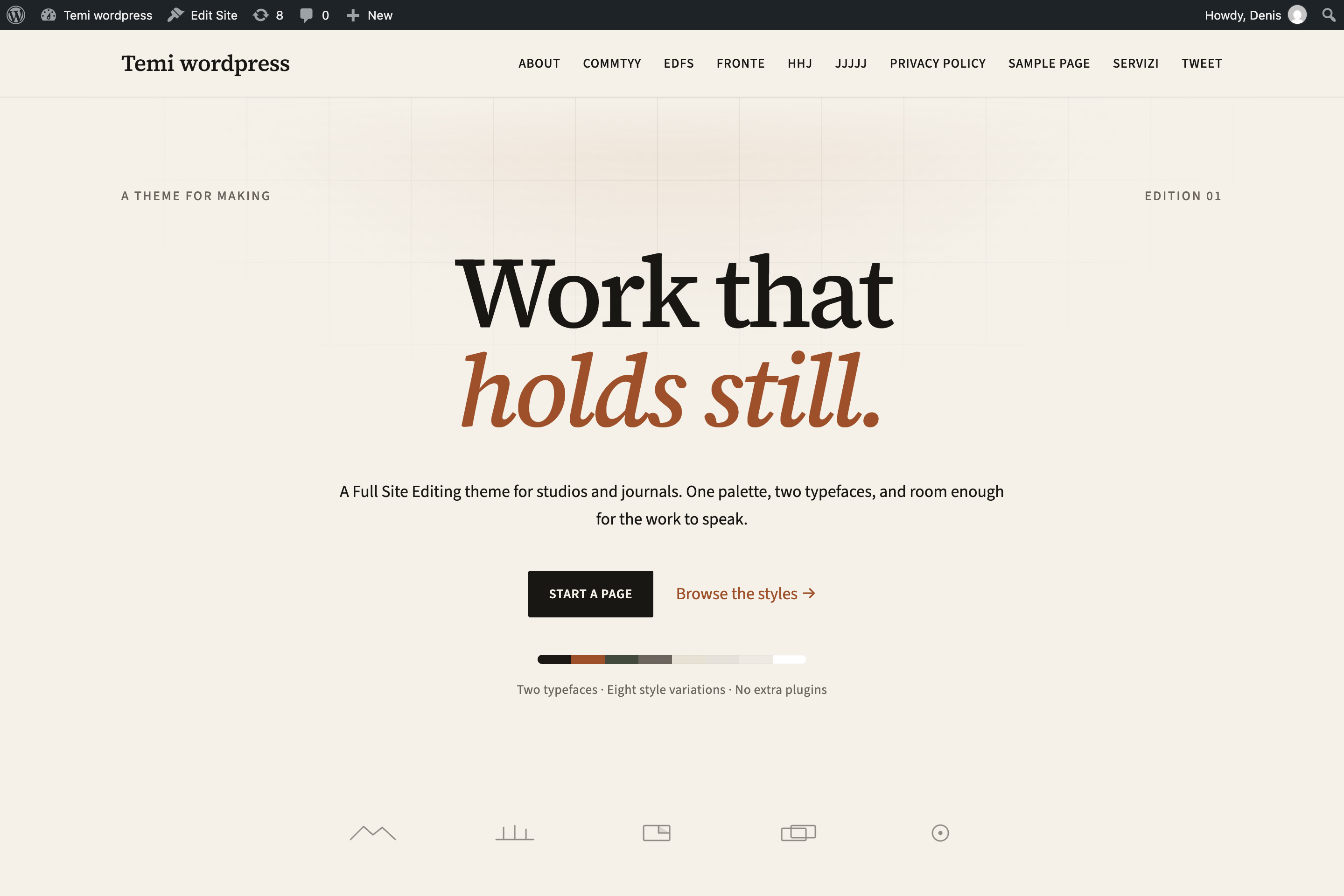
- 2Open the Site Editor. Go to Appearance → Editor. This is where you will find Styles, Pages, Navigation, Patterns, and Templates.
- 3Choose the visual identity. Set the logo, site title, and a global style variation before customizing individual blocks.
- 4Create the essential pages. Choose Studio, Professionista, About the studio, Project case study, or one of the existing page starters and replace all sample content.
02 · Site Editor
The theme’s control center
From Appearance → Editor, you can work on the entire site. Changes made here may affect every page, so use the preview before saving.
| Area | What it controls | When to use it |
|---|---|---|
| Identity | Site title, tagline, and icon | Initial brand setup |
| Styles | Colors, typography, layout, and blocks | Site-wide visual changes |
| Pages | Published page and draft content | Day-to-day editorial work |
| Navigation | Menu items, order, and submenus | Main menu structure |
| Patterns | Prebuilt sections and template parts | Fast page composition |
| Templates | Page, post, and archive structure | Changes that should apply in series |
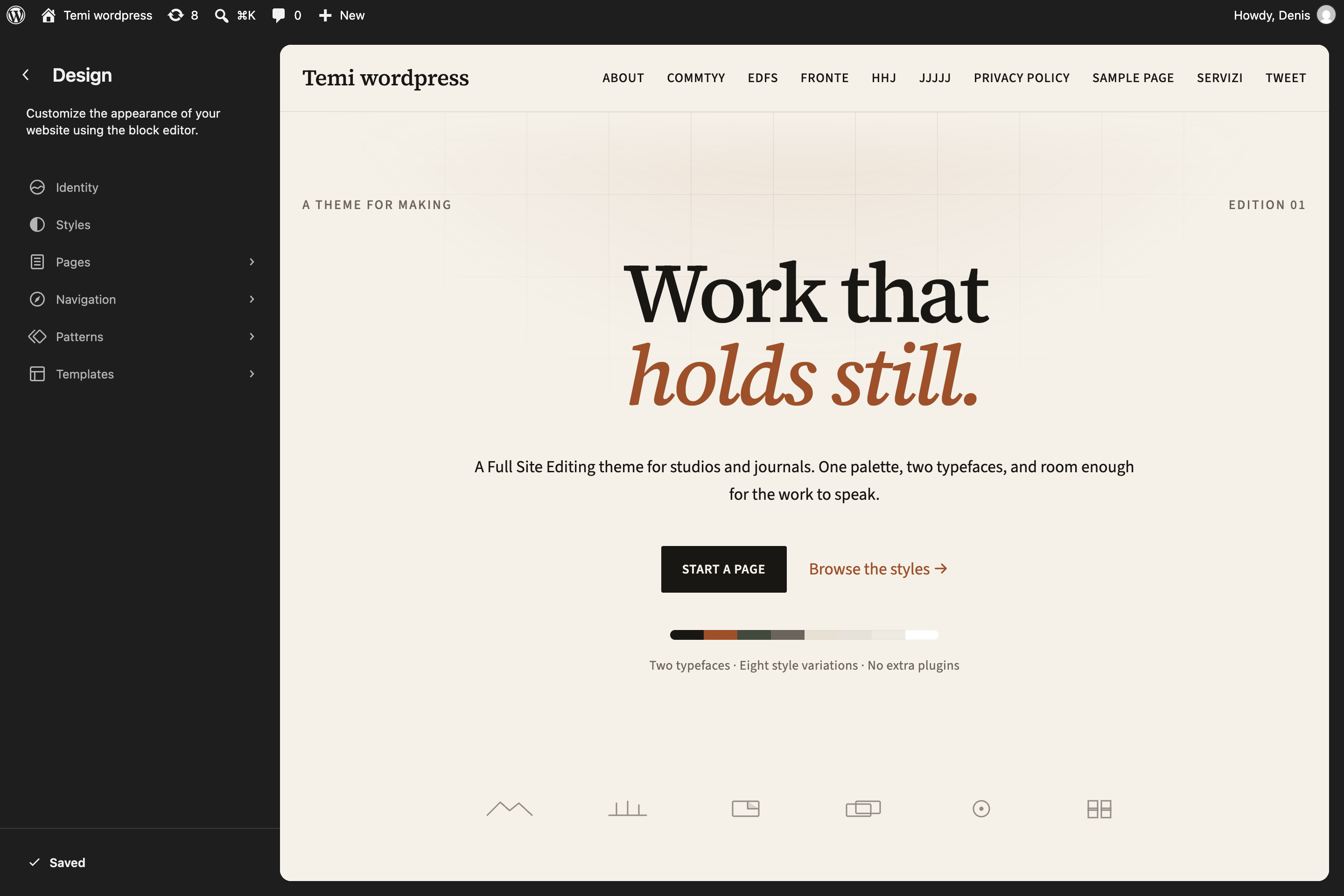
Edit a page to change one piece of content. Edit a template only when you want to change the structure of every page that uses it.
03 · Global styles
Change the look without rebuilding the site
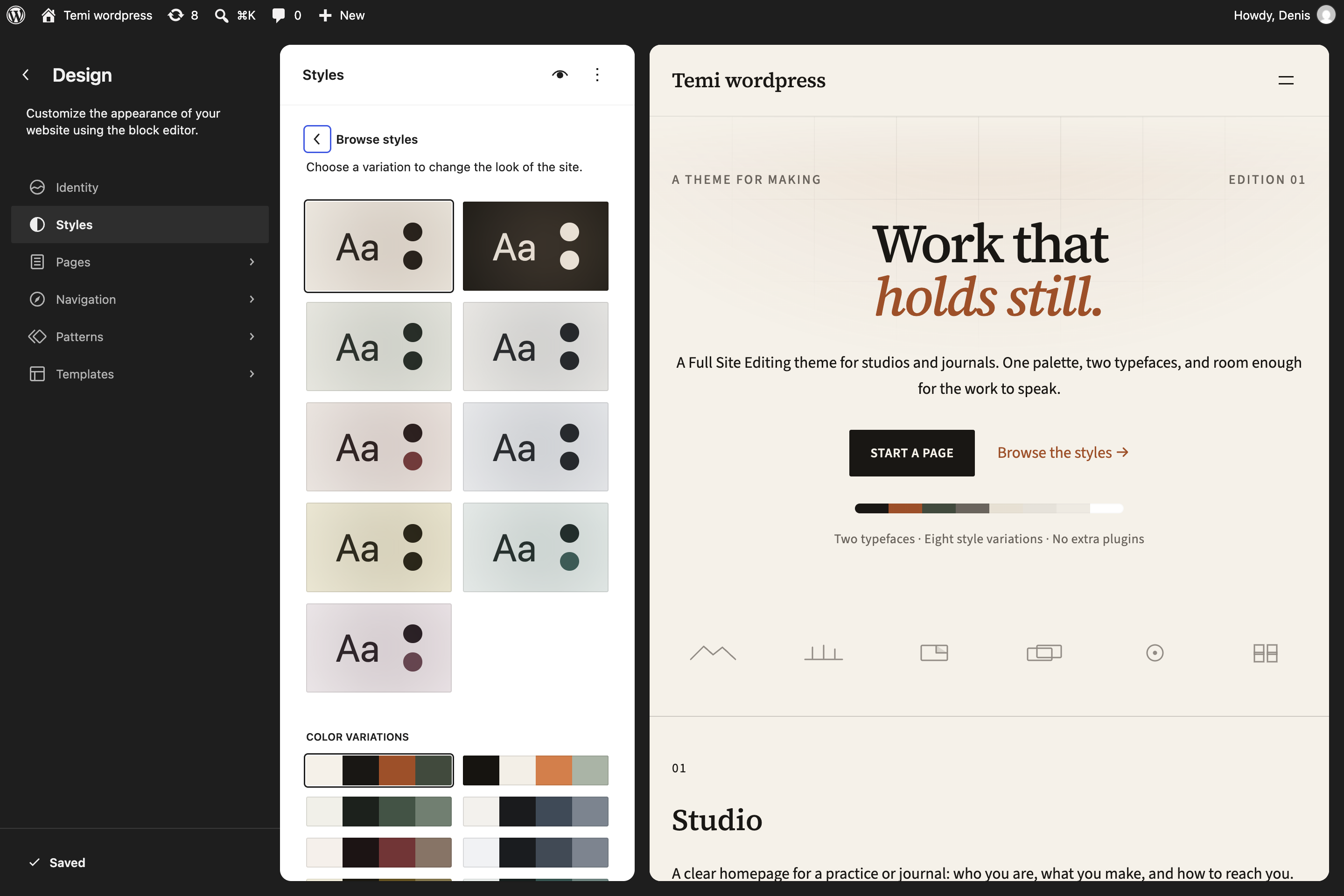
Open Appearance → Editor → Styles → Browse styles. A variation applies a coordinated palette, contrast system, and typography while leaving your content and block structure unchanged.
Inchiostro
Salvia
Calce
Vino
Nebbia
Limone
Laguna
Malva
Alongside complete variations, Trama provides independent color combinations and three typography alternatives: Editoriale, Atelier, and Rivista. Mix them, then refine Typography, Colors, Background, Shadows, and Layout individually.
On WordPress 7.1, check the native responsive editing controls and mobile, tablet, and desktop previews. Trama’s new layouts include responsive typography and spacing. WordPress 6.7 remains supported with the base layouts; the newer controls depend on your WordPress version.
Recommended workflow
- 1Choose the complete variation closest to your intended result.
- 2Adjust global colors and typography only after checking several pages.
- 3Customize an individual block only when it needs to be an exception.
04 · Patterns
Build with predesigned sections
Trama includes complete page starters and reusable section patterns. Browse them in Appearance → Editor → Patterns → Trama, or insert them directly in the page editor from the + button and the Patterns tab.
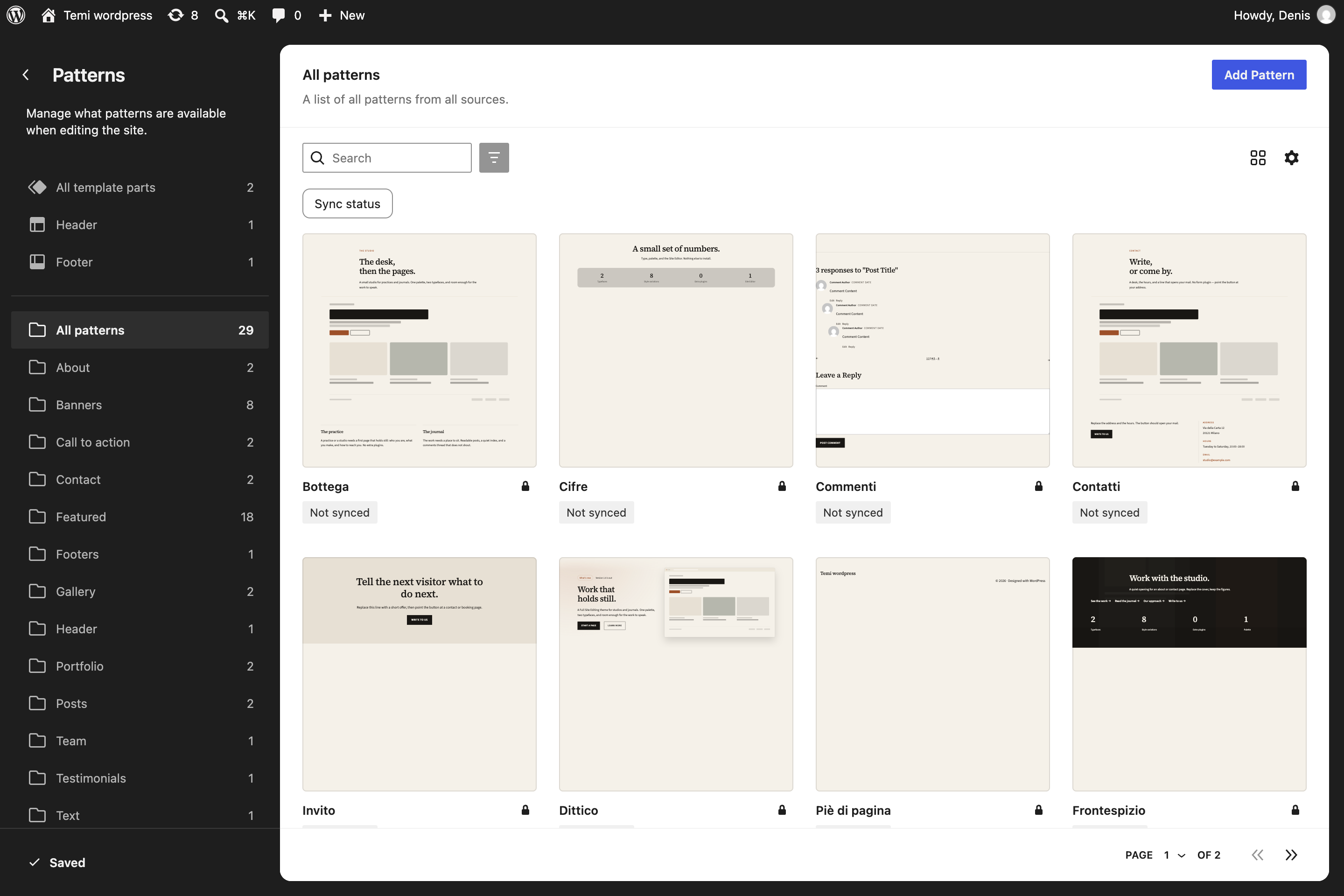
Once inserted, they become regular blocks on the page. You can change text, images, colors, and order without affecting the original pattern or other pages.
Useful patterns by section
- Openings: Manifesto, Dittico, Poster, Frontespizio, and Hero macchina da scrivere.
- Content: Lavori, Cifre, Passi, Articoli, Ultimi articoli, and Loghi.
- Closings: Invito, Contatti, and Piè di pagina.
05 · Page starters
Start with a complete page
When you create a page from Pages → Add Page, Trama offers complete layouts, including the four new starters in version 1.1.0. If the window does not appear, open the inserter and find the layout in the Trama category.
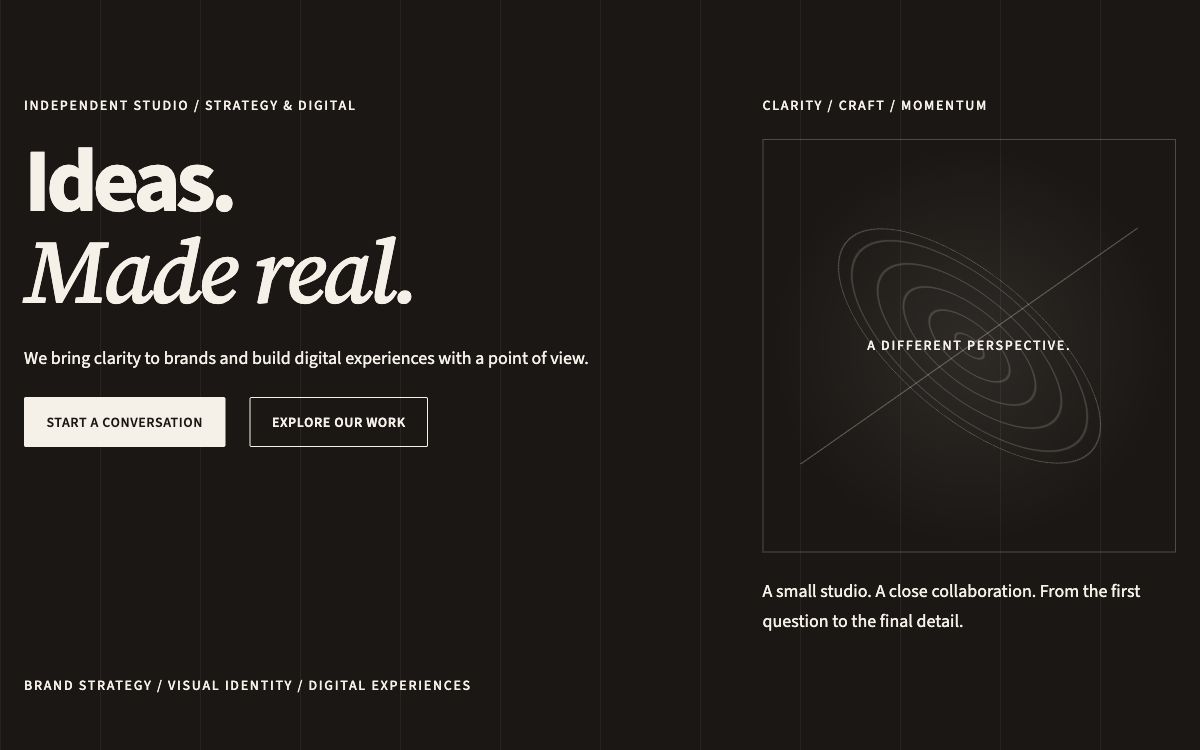
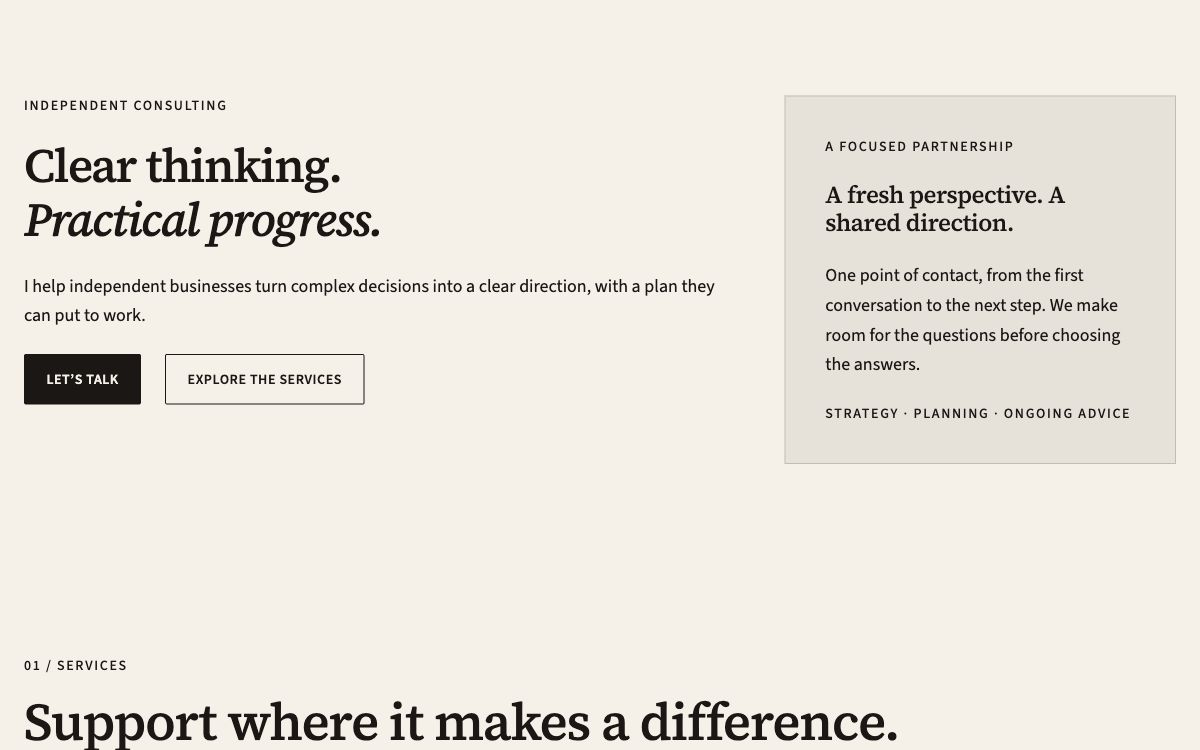
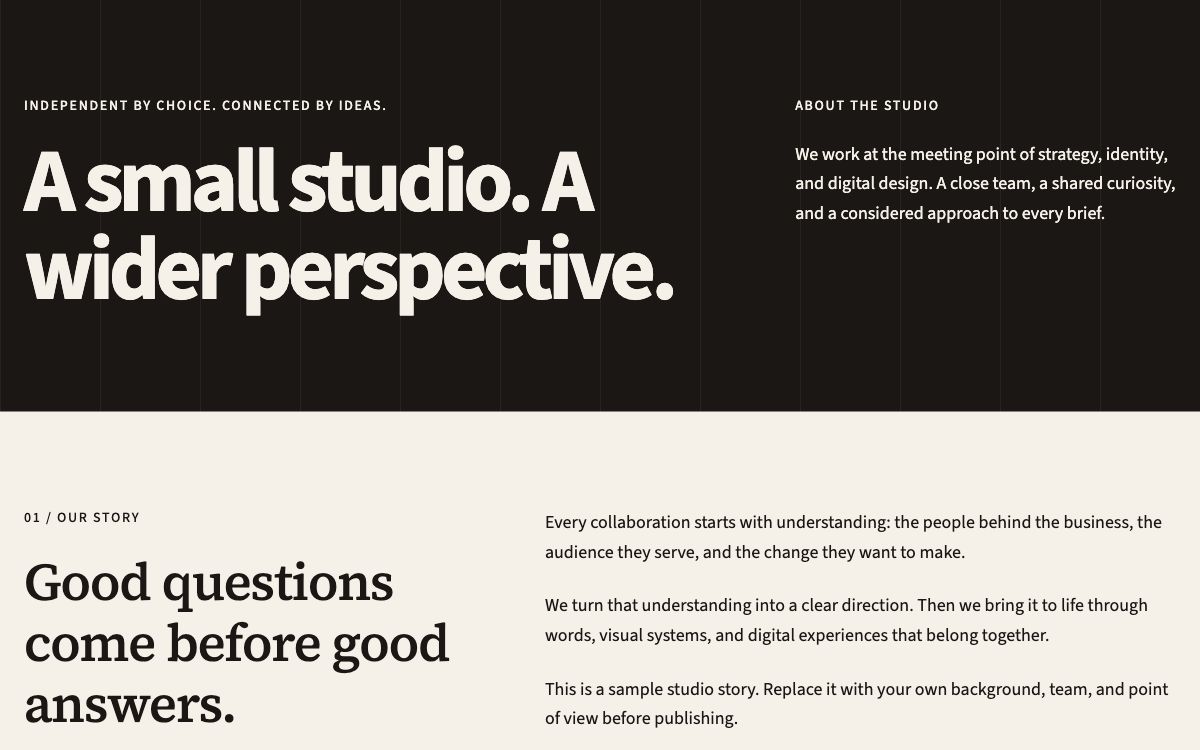
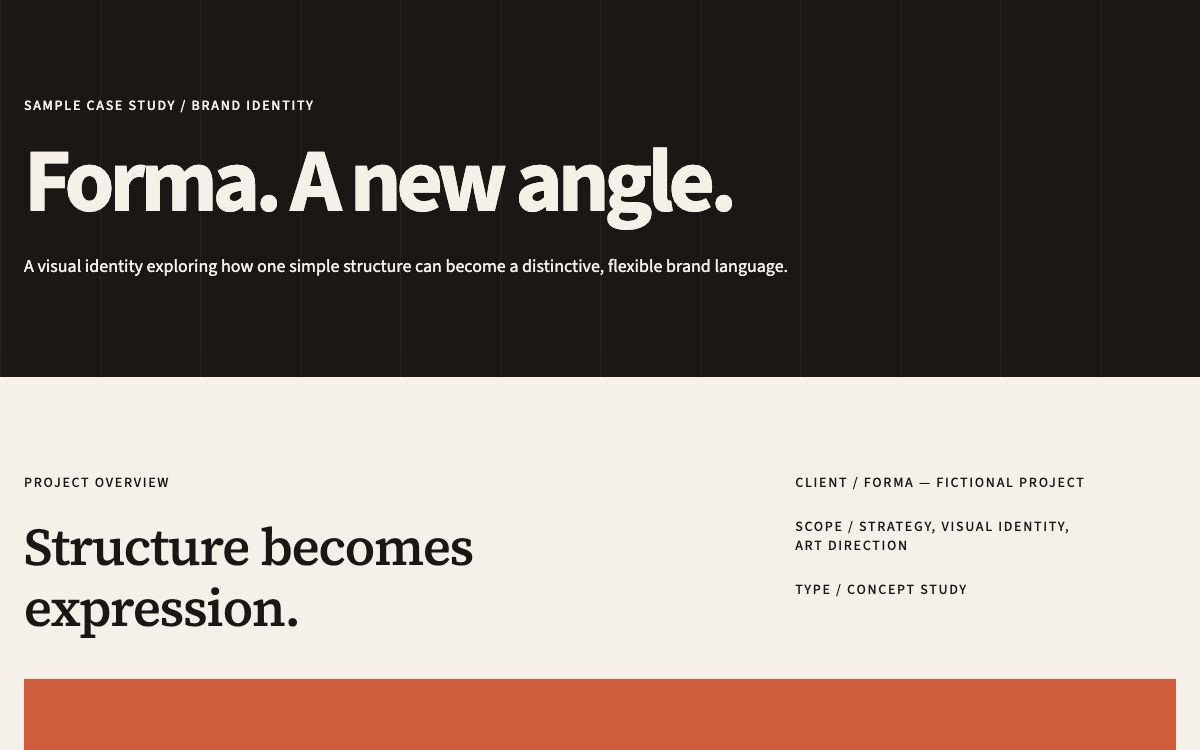
Homepage — Studio
A creative studio homepage with services, selected projects, process, and contact. Use Studio — Full-width page.
Homepage — Professionista
A consulting homepage with services, approach, questions, and contact. Use Page without title.
Page — About the studio
Your studio story, principles, collaboration, and contact. Use Page without title.
Page — Project case study
A project overview, brief, approach, and outcome. Use Page without title.
Bottega
Studio or about page with people, a testimonial, and a closing call to action.
Servizi
Professional services, a four-step process, and a call to action.
Progetti
Selected work in an editorial grid with a dedicated closing section.
Contatti
Studio image, contact details, opening hours, and an email button.
Guida
Documentation page with quick start, theme features, quick checks, and useful links.
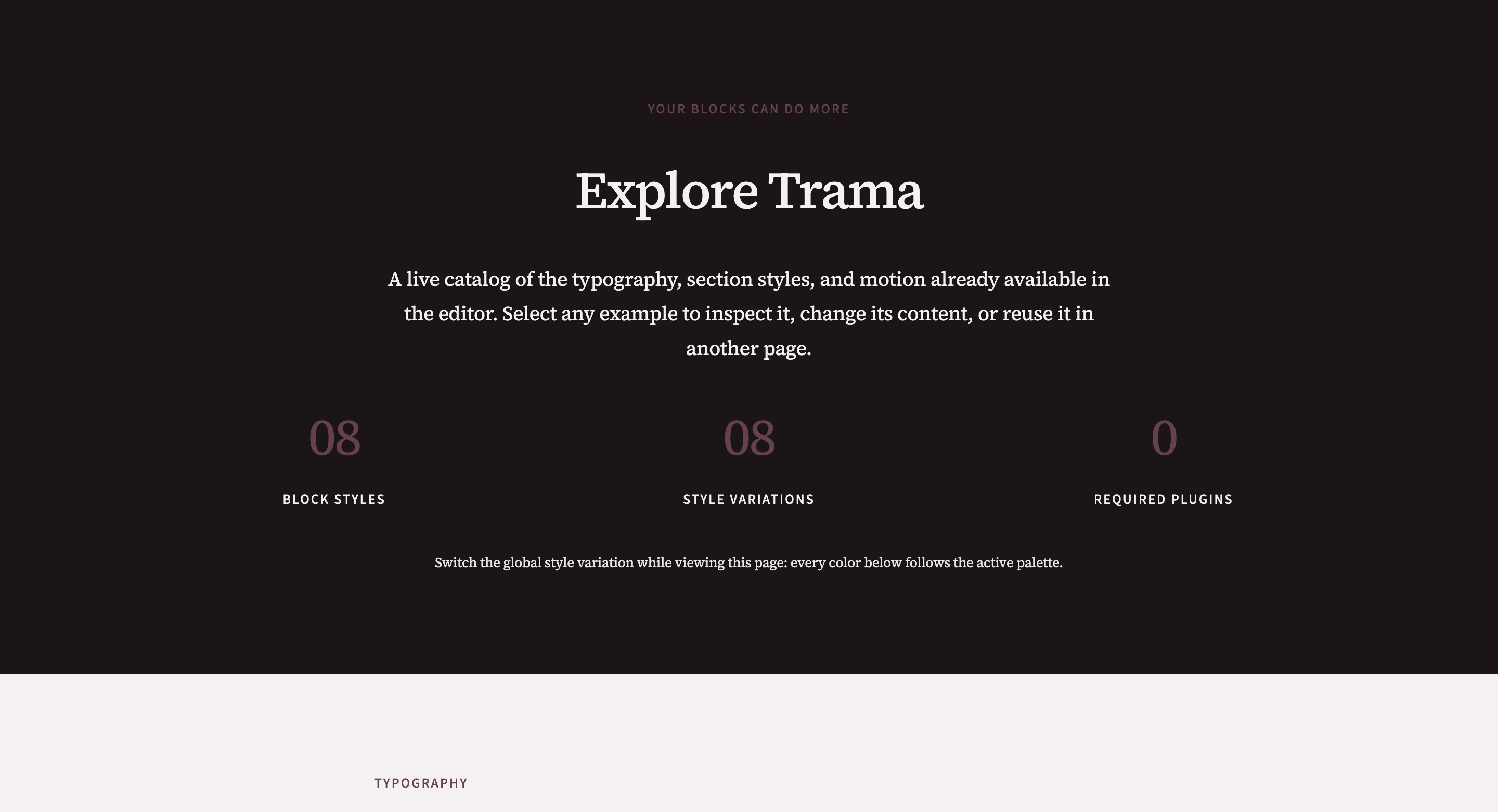
Esplora Trama
Editable catalog of heading styles, section treatments, continuous rows, and motion.
New in 1.0.43
Explore before you compose
Esplora Trama is a working catalog built entirely with editable core blocks. Use it to see the theme’s typography, section treatments, continuous rows, and scroll reveals together, then keep, rearrange, or remove any module.
Make Studio your homepage
- 1Create a new page and select Homepage — Studio.
- 2Assign Studio — Full-width page in the page’s Template settings. This includes the Studio header.
- 3Replace sample content and project images. Update the section links in the Studio header and all contact buttons.
- 4Publish, then open Settings → Reading, select A static page, and choose the new page as your homepage. Select a separate posts page if needed.
Updating to 1.1.0 does not automatically select Studio or Professionista. The original default homepage is retained. Changes you have saved in the Site Editor can override theme templates; review those customizations before switching layouts.
About and project pages
Use Page without title for both starters. They use the site’s regular header. The Forma case study is a fictional example: replace the client, brief, images, and outcomes with your own work, then link to the published project page from the Studio portfolio.
Publish without duplicate titles
- 1Add an administrative page title. WordPress also uses it for menus, URLs, and search engines.
- 2In the sidebar, open Page → Template and choose Page without title, or Studio — Full-width page for the Studio homepage.
- 3Replace all sample text, images, addresses, and links.
- 4Check the desktop, tablet, and mobile previews, then publish.
06 · Block styles
Change expression without changing the block
Block styles are visual treatments for native WordPress blocks. Select a compatible block, open the Styles panel in the sidebar, and choose a variation. Your content remains editable and follows the active global palette.
Display title
Large editorial openings and concise statements.
Editorial subtitle
A quieter italic line below a primary heading.
Typewriter
Short animated messages with a cursor effect.
Always visible
Navigation or reference content that stays in view.
Continuous scrolling
Repeating logos or short labels in a horizontal row.
Translucent section
Soft, layered introductions using the active palette.
Diptych section
Two-part compositions with a controlled editorial split.
Manifesto section
High-contrast statements and decisive page openings.
Studio and professional treatments
The new starters already apply coordinated styles: Studio includes paper and ink sections, manifesto headings, an orbit illustration, service cards, project cards, process steps, and a header treatment. Professionista includes section, panel, item, and Details question styles. Select the corresponding Group, Heading, or Details block to reuse these treatments from its Styles panel.
Choose the global style variation before applying block styles. Every treatment uses Trama’s color presets, so it adapts when the site palette changes.
08 · Animations
Add a scroll reveal
The trama-reveal CSS class adds a subtle entrance when a block enters the viewport. It requires no plugin and respects the visitor’s reduced-motion system preference.
- 1Select a Group, Columns, or another section you want to animate.
- 2Open the Block → Advanced panel in the sidebar.
- 3Enter
trama-revealin the Additional CSS class(es) field. - 4Save and check the effect on the front end. Remove the class to disable it.
Apply the effect to a few main sections, not every inner block. The page will remain easier to read and the motion will retain its purpose.
09 · Troubleshooting
Quick checks
Open Appearance → Trama for the four new page previews and template instructions. The page also links to the WordPress.org support forum and offers an optional link to share an honest review.
The title appears twice on the page
The page starter already contains its own heading. Open the page settings and assign Page without title, or Studio — Full-width page for the Studio homepage.
I cannot see the page starters
Open the + inserter, switch to the Patterns tab, and search for Homepage — Studio, Homepage — Professionista, Page — About the studio, Page — Project case study, or an existing starter. You can also re-enable the option to always show starter patterns in the initial window.
A style changed the entire site
This is the expected behavior of global styles. Use the three-dot menu in the Styles panel to open revisions or reset changes, then save.
I cannot find Editor under Appearance
Make sure Trama is the active theme and your account has administrator permissions. The Editor is available because Trama is a block theme.
The animation does not start
Make sure the class is written exactly as trama-reveal. When reduced motion is enabled in the operating system, Trama correctly displays the content without animating it.
Pre-publish checklist
- All sample text, links, and contact details have been replaced.
- The logo, site title, and favicon are correct.
- Menus and submenus work on both desktop and mobile.
- Every image has useful alternative text or is marked as decorative.
- Complete pages use the correct template and do not duplicate the title.
- The site has been checked in desktop, tablet, and mobile previews.
10 · Changelog
Recent releases
A concise record of the latest user-facing changes. The changelog bundled in the theme’s readme.txt remains the complete release record.
Version 1.1.0
Current- Added Studio and Professionista homepage starters, plus About and Project case study pages.
- Added reusable Studio and professional sections and coordinated block styles.
- Added a dedicated full-width Studio template and header, with responsive refinements for WordPress 7.1.
- Refreshed the theme screenshot and Appearance → Trama with page previews, setup instructions, support, and an optional review link.
- Raised the minimum PHP version to 8.2. WordPress 6.7 remains supported.
- Kept the original default homepage; alternative homepages are an explicit choice.
Version 1.0.43
- Added the modular Guida and Esplora Trama page starters.
- Clarified all eight block-style names and exposed the three Group section treatments.
- Redesigned Appearance → Trama and added a dismissible activation welcome notice.
- Added guide navigation, accordion behavior, screenshots, and updated documentation links.
Version 1.0.42
- Refreshed the Manifesto screenshot and removed shop-oriented wording.
Version 1.0.41
- Completed release cleanup and updated the theme documentation link.